Quick replies
A member writes a trigger word. The bot sends the ready reply. Example: a member writes “price”. The bot sends the price information. Quick replies are unlimited on all plans.
A reply can be text, a photo, a video or a sticker. A trigger can have a maximum of 10 reply variants. Each time, the bot picks one of the variants at random.
Adding a reply: Mini App
- In the panel, open the Chats → group → 💬 Quick replies screen.
- In the Mini App, tap + Add reply.
- Write the trigger.
- Write the reply.
- You can also add a link button. The button address starts with
https://. - Tap Save.
Adding a reply: command in the group
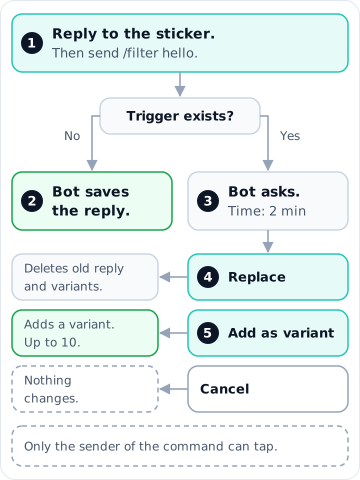
- Reply to the sticker, the photo or the video (① in the diagram).
- Send
/filter hello. The bot deletes your command message. - If the trigger is new, the bot saves the reply (②).
- If the trigger already exists, the bot asks what to do (③). The question stays open for 2 minutes.
- To delete the old reply, tap 🔁 Replace (④). The bot also deletes all variants of the old reply.
- To put the new reply next to the old reply, tap 🎲 Add as variant (⑤).
- To make no change, tap Cancel.
Only the admin who sent the command can tap the buttons. When the admin taps a button, the bot checks the permissions of the admin again.
For a text reply, write the reply in the command: /filter price The price list is in the pinned message.
If you reply to a message and write text in the command, the bot uses the text from the command. The bot takes only the media from the message that you reply to.
Commands
| Command | What it does | Role |
|---|---|---|
/answer add price The price list is in the pinned message. |
Adds a quick reply | Owner, Admin |
/answer add "kill zone" The session starts at 20:00. |
Adds a reply for a trigger with more than one word. Put the trigger in quotes | Owner, Admin |
/answer add (hello, hi) Welcome! |
Adds the same reply to more than one trigger | Owner, Admin |
Reply to the media, then send /answer add trigger |
Uses the media as the reply | Owner, Admin |
/answer remove price |
Deletes the reply | Owner, Admin |
/answers |
Shows the replies of the group | Owner, Admin |
/stopall |
Deletes all replies of the group. The bot asks for confirmation first | Owner only |
The Rose commands also work:
| Rose command | Musteron command |
|---|---|
/filter |
/answer add |
/filters |
/answers |
/stop |
/answer remove |
/stopall |
/stopall |
If Rose is also in the group
Both bots get each command. Both bots reply at the same time. Remove Rose from the group.
Sending a reply
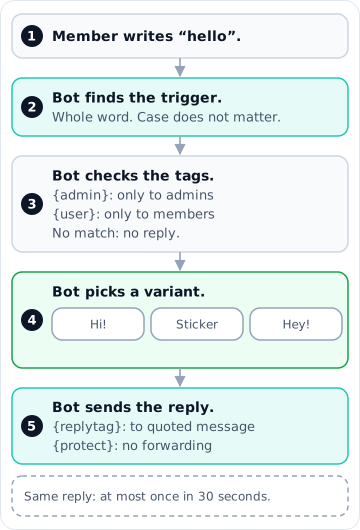
- A member writes a message (①).
- The bot looks for the triggers of the group in the message (②).
- The bot checks the tags in the reply (③). If the person does not match the tags, the bot does not reply.
- The bot picks one of the variants at random (④).
- The bot sends the reply (⑤).
Match rules
- The bot finds a trigger only as a whole word. Example: the trigger “lan” does not find the word “plan”.
- To find a trigger with word endings, put
*at the end of the trigger. Example:price*finds the word “prices”. - Upper case and lower case are the same. “IBAN”, “iban” and “Iban” are the same trigger.
- If a message has more than one trigger, the bot uses the trigger that comes first in the message.
- The bot sends the same reply in the same group a maximum of one time in 30 seconds.
Variants and random replies
- A trigger can have a maximum of 10 variants.
- To add a variant, add the new reply with the same trigger. Then tap 🎲 Add as variant.
- To divide a text reply into variants, separate the parts with
%%%.
Example: /filter hello Hi! %%% Hello! %%% Hey! This command makes three variants.
In the Mini App list, a reply with variants shows the 🎲 N variants badge. A text change in the Mini App does not delete the variants.
Tags
Write the tag in the reply text. The bot does not send the tag.
| Tag | What it does | In the diagram |
|---|---|---|
{admin} |
The bot replies only when an admin writes | ③ |
{user} |
The bot replies only when a member who is not an admin writes | ③ |
{replytag} |
If an admin quotes a message and writes the trigger, the reply goes to the quoted message | ⑤ |
{protect} |
Members cannot forward or save the reply | ⑤ |
Example: /filter rules {replytag} Please read the group rules.
Do not write {admin} and {user} in the same reply. If you do, the bot ignores both tags.
Placeholders
Write the placeholder in the reply text. The bot replaces the placeholder with the data of the person who wrote the trigger.
| Placeholder | Value |
|---|---|
{first} |
First name |
{mention} |
The name of the person. The person gets a notification |
{chatname} |
Group name |
Changing an automation to quick replies
If an automation only replies to a word with text, a quick reply is easier.
- Open the automation in the Mini App.
- Tap Change to quick replies.
The bot makes one quick reply for each keyword. The bot turns off the automation. The bot does not delete the automation.
To move your filters from Rose, read Moving from Rose.